Installation Manual V-5.1.0
Overview
true-Broker enables UBS customers to automatically exchange data with B2B applications of UBS over the Internet. true-Broker Web is responsible to establish a secure communication with the UBS Web-Portal. The communication is secured using 128bit SSL/TLS with mutual certificate based authentication.
true-Broker Web is a Web application running on an Apache Tomcat server.
true-Broker Web is multi-client capable. true-Broker Web Administration may be used to manage the client instances of true-Broker Web. For each client a specific true-Broker Web application instance is deployed on Apache Tomcat which separates it from the other clients.
The configuration of each true-Broker Web client instance is held in an internal data base.
true-Broker Web additionally offers a Web service interface for real time message exchange. The supported operations of the Web service interface are:
- Check the connection to the target system
- Transfer message from the client system to the target system
- Check the status of a sent message
- Receive a message from the target system
System Requirements
Operating systems
- Recent Windows OS (Server or Desktop)
Software
- true-Broker Web 5.0.x or newer
Hardware
- 20 GB free hard disk
- 8 GB RAM
Other
- Administrator rights
- https access to the Internet (proxy configuration parameters if required)
- Unbound local port 8645/8646
- Firewall allowing connections to http://localhost:8645 and/or https://localhost:8646
Installation
a) Download true-Broker Web from the release section of this site.
https://products.sits.services/books/true-broker/chapter/releases
b) Install true-Broker Web by running the downloaded installer. To connect to UBS you require at least version 5.0 of true-Broker. The version is displayed at the bottom-right corner in true-Broker Web.
Configration
Add a client
Once the software is installed, you can start with the configurtaion of it as per the steps below:
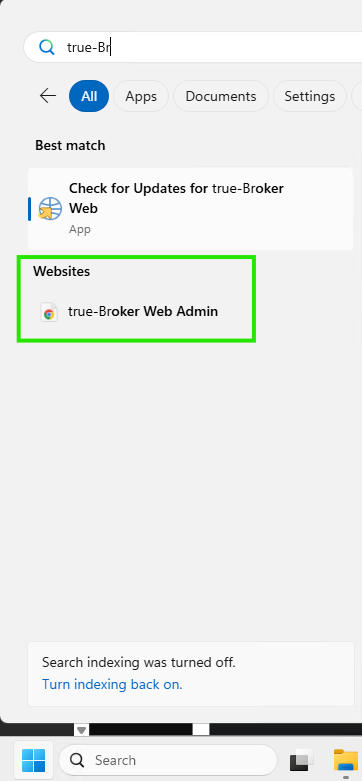
a) Open true-Broker Web Admin via Start → Programs → keyon → true-Broker Web Admin
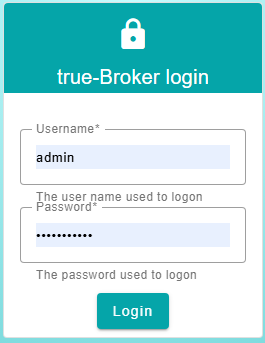
b) Login with user name 'admin' and Password = '12345678', click Login
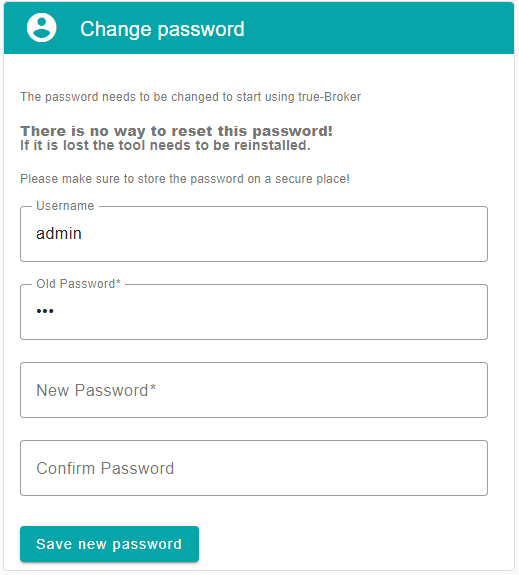
c) true-Broker requires you to change the password after the first login. Please be aware that the passort cannot be reset! It is your responsibility to store the password in a secure place.
d) Add client by entering a client name and it's booking center (e.g. MyClient_UBS_CH_PSN) Do not use any whitespaces in the name.
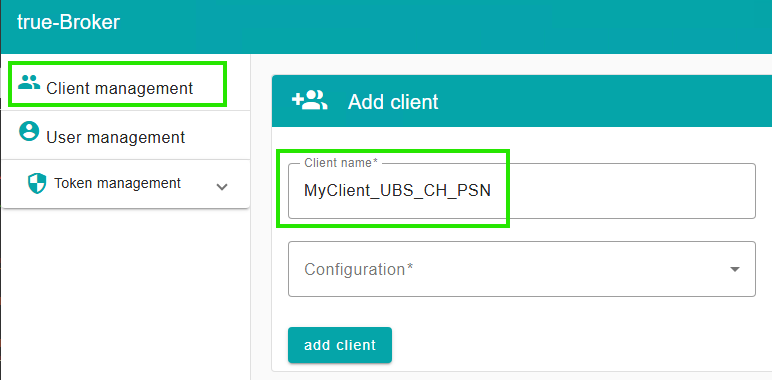
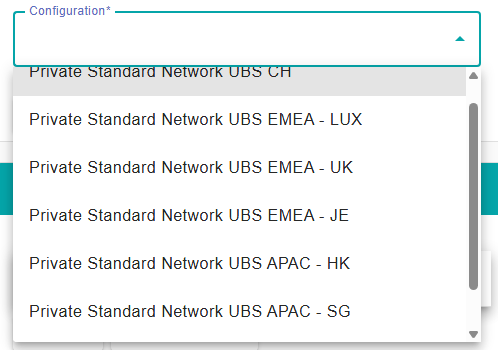
e) Choose the correct Configuration based on where your accounts are booked.
For example:
- UBS Switzerland booked accounts:
- Private Standard Network UBS CH
- UBS Luxembourg booked accounts:
- Private Standard Network UBS EMEA - LUX
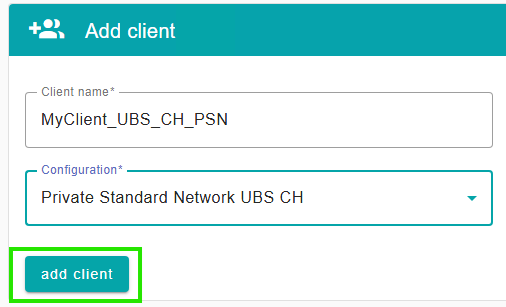
f) Click Add client and wait for one minute for the client to be deployed.
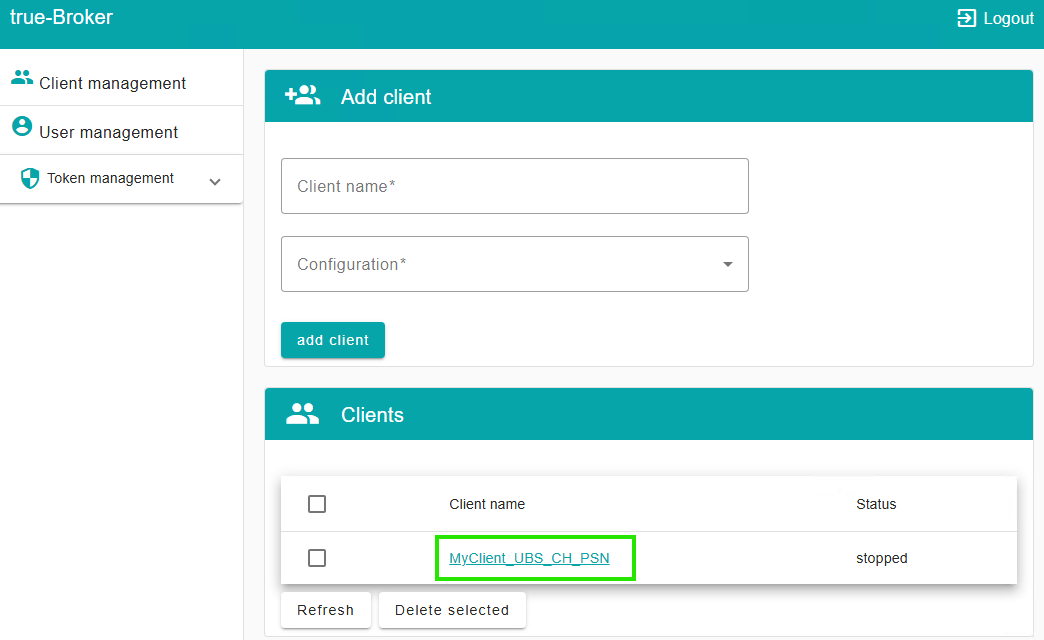
g) Restart the windows service (TrueBrokerWeb) afer the client was added.
Configure the client
a) Open the client by clicking on the client name
b) Login with user name = admin and your password, click Login
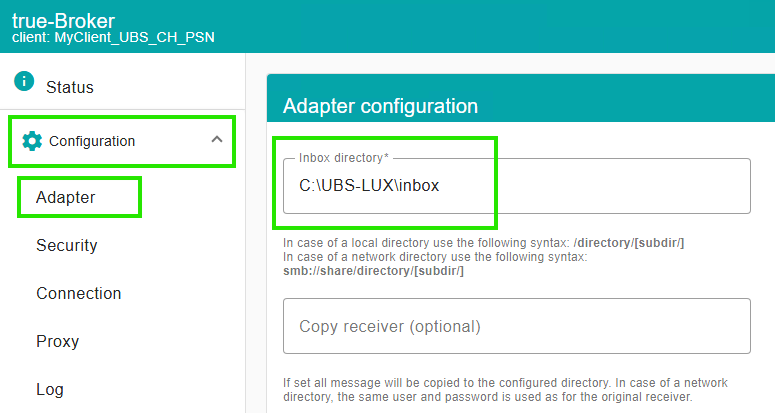
c) Configure download path by clicking Adapter, at Inbox directory set the path to an existing directory (e.g. C:\UBS-CH\inbox), then click Save
Create the certificate
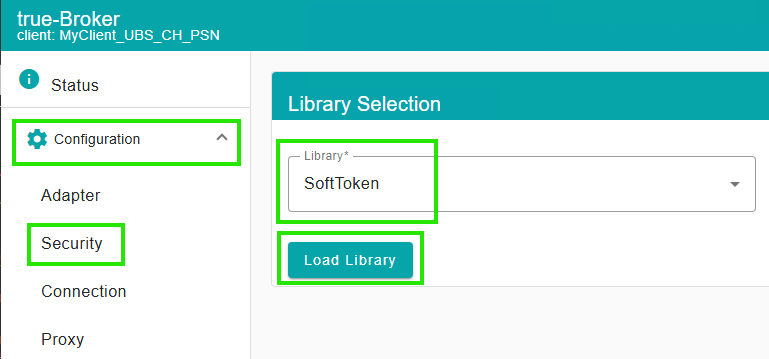
a) Configure security by clicking Security, select the appropriate Library:
- SoftToken
then click Load Library
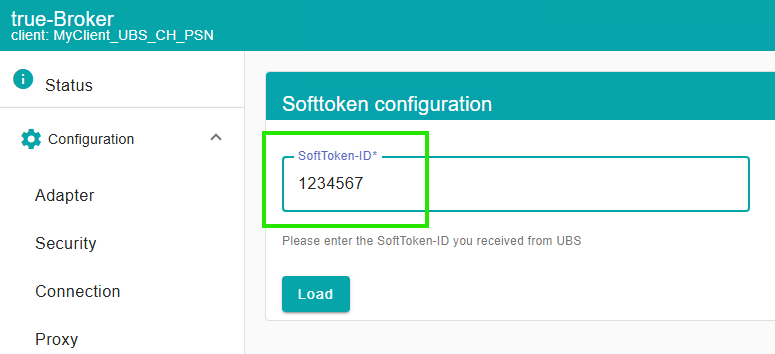
b) Enter Contract-ID which you received by mail from UBS, then click Load. Example UBS-Contract-ID: 12345678
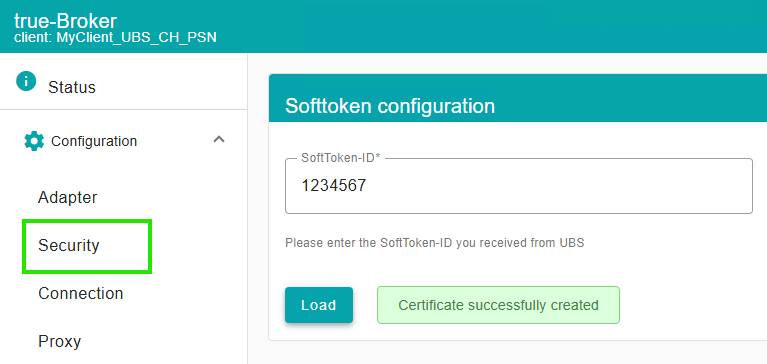
c) Click again on Security to display the generated certificate
d) Send the created Certificate to UBS. You can find it at the bottom of the Security page. Copy it, save it as a .txt file (you can use Notepad for this) and send it to: sh-psn@ubs.com
Do NOT send the thumbprint via mail
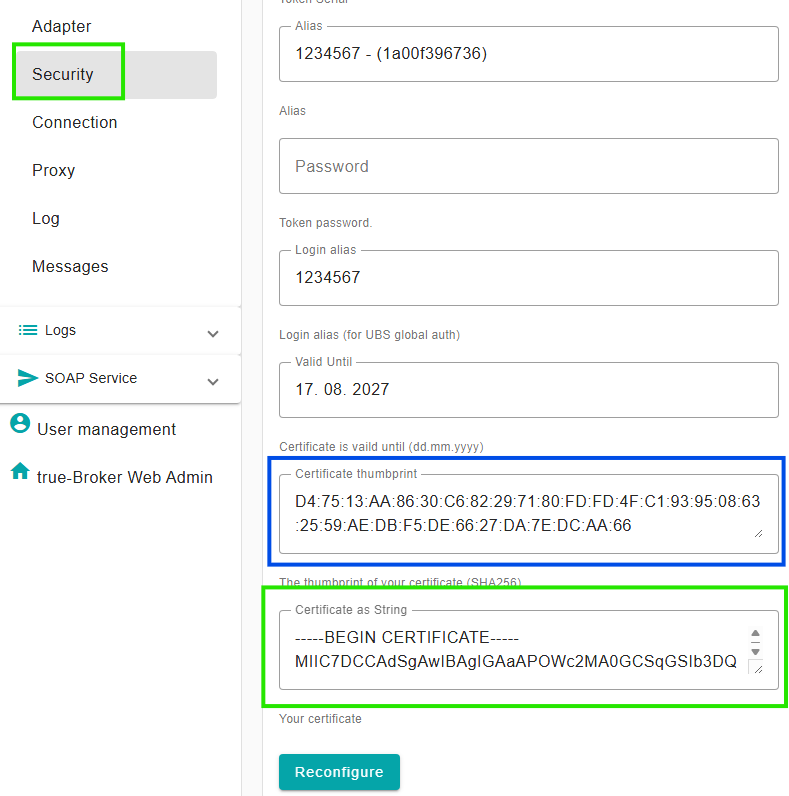
UBS now needs to register your newly created certificate on their side. For this you must schedule a call with the team (sh-psn@ubs.com). During this call, you share the thumbprint of your certificate with UBS. The thumbprint of your certificate is listed under Security, directly above your certificate. (Marked in blue)
Test and start your client
a) Open the client by clicking on the client name
b) Login with username 'admin' and your password, click Login
c) Run Configuration Test by clicking Status on the left, then click Test
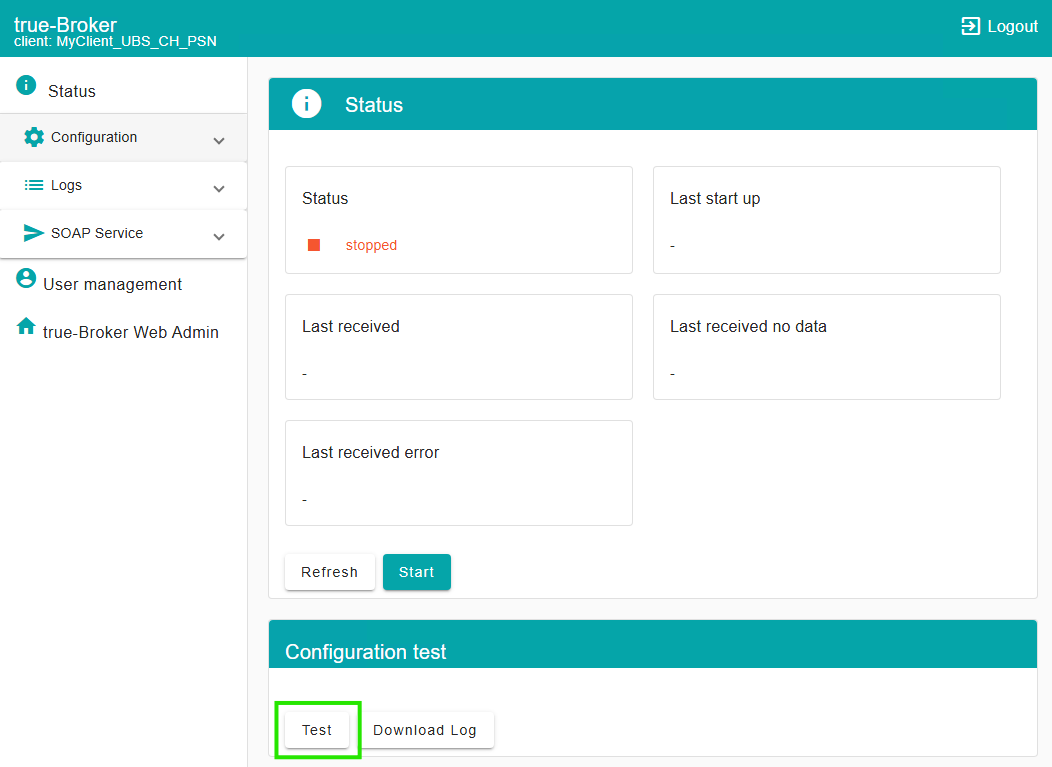
d) Start the client by clicking Start (once the connection test was successful)
Done! Your downloaded files will now be saved in the configured directory
Troubleshoot
If the connection is not working as expected, please execute the test as described above. Then check the error which is shown.
Contract unknown
The test is not successfull and shows below error: Contract unknown
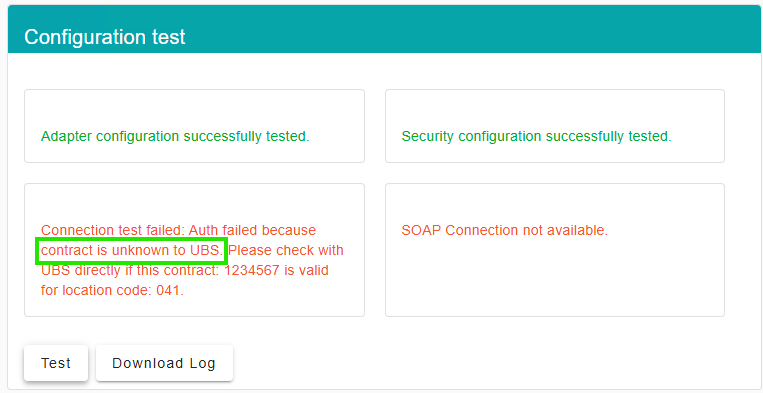
The above error means, that either your contract number is wrong or you have chosen the wrong booking location. Please double check that the contract number is correct and that you have chosen the right location. The Booking Codes mentioned in the error are mapped as per below table. If you are unsure what to choose, please contact your client advisor of UBS to clarify it.
| Location | Code |
|---|---|
| Hong-Kong | 030 |
| Jersey | 036 |
| Luxembourg | 041 |
| Singapore | 046 |
| Switzerland | 001 |
| United Kingdom | 023 |
Certificate unknown
The test is not successfull and shows below error: Certificate unknown
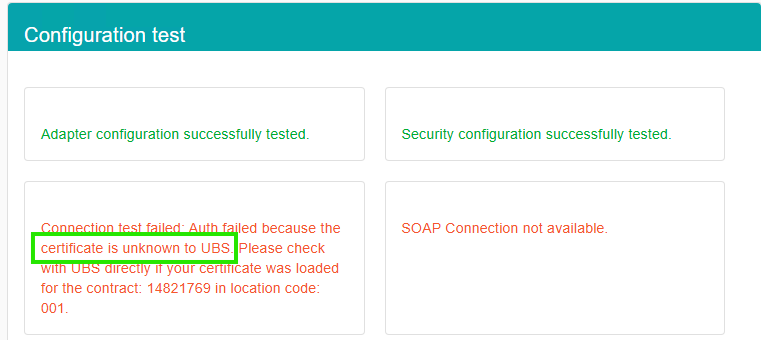
The above error means, that UBS did not yet load your certificate on their side. Please wait until you receive the confirmation from UBS that your certificate was activated. After that, the test should result in a success.
Support
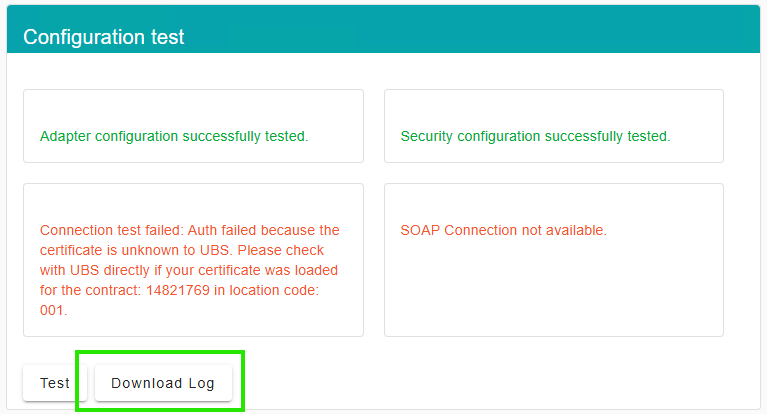
In case you see a different error or you need furhter assistance. Please download the log file of the test as per the screenshot below and provide it to our support team at: servicedesk@sits.com