# Installation Manual Linux V-5.1.0
[](pdfgenerator=eyJ0aXRsZSI6IFsidHJ1ZS1Ccm9rZXIiXSwgInN1YnRpdGxlIjogWyJJbnN0YWxsYXRpb24gTWFudWFsIExpbnV4IFYtNS4xLjAiXSwgInZlcnNpb24iOiAiNS4xLjAifQ==)
# Overview
true-Broker enables UBS customers to automatically exchange data with B2B applications of UBS over the Internet. true-Broker Web is responsible to establish a secure communication with the UBS Web-Portal. The communication is secured using 128bit SSL/TLS with mutual certificate based authentication.
true-Broker Web is a Web application running on an Apache Tomcat server.
true-Broker Web is multi-client capable. true-Broker Web Administration may be used to manage the client instances of true-Broker Web. For each client a specific true-Broker Web application instance is deployed on Apache Tomcat which separates it from the other clients.
The configuration of each true-Broker Web client instance is held in an internal data base.
true-Broker Web additionally offers a Web service interface for real time message exchange. The supported operations of the Web service interface are:
- Check the connection to the target system
- Transfer message from the client system to the target system
- Check the status of a sent message
- Receive a message from the target system
## System Requirements
Operating systems
- RPM Based Linux Systems
Software
- true-Broker Web 5.0.x or newer
- Softtoken
- OpenDNSSEC - Softhsm2
- nss-tools
- compat-openssl11
Hardware
- 20 GB free hard disk
- 8 GB RAM
Other
- root rights
- https access to the Internet (proxy configuration parameters if required)
- Unbound local port 8645/8646
- Firewall allowing connections to [http://localhost:8645](http://localhost:8645) and/or [https://localhost:8646](https://localhost:8646)
# Packages
The packages can be downloaded under:
[https://products.sits.services/books/true-broker/chapter/releases](https://products.sits.services/books/true-broker/chapter/releases)
# Installing true-Broker Web
## Install SoftHsm2
Install the SoftHsm2 software as follows.
`rpm –i softhsm-2.6.0-3.module.x86_64.rpm`
## User/Group
Create a new group account *keyon*. Create a new user account *keyon*. The third line ensures that the *keyon* account has write access to the directory */var/lib/softhsm/tokens.*
`groupadd keyon useradd -g keyon keyon usermod -a -G ods keyon `
## Installing true-Broker Web Software
All software components are delivered as Linux packages. Follow the steps below to install the software packages:
`rpm –i KEYON-TBW-JRE.adm64.rpm --force`
`rpm -i KEYON-TBW-SRV.adm64.rpm --force`
`rpm -i KEYON-TBW-DB.adm64.rpm --force`
`rpm -i KEYON-TBW-APP.adm64.rpm --force`
# Configure true-Broker
## SSL Certificate Configuration
True-Broker is a web application based on tomcat. Therefore, it’s good practice to encrypt the communication with SSL. To do so, an SSL Certificate needs to be created matching your hostname, or at least “localhost” if you do not intend to access true-broker from remote.
The certificate can potentially be issued using your internal PKI system. Otherwise, a self-signed certificate can be issued using OpenSSL. Please refer to the OpenSSL manual for more details.
The certificate needs to be configured in below file.
`/opt/keyon/trueBroker/server/conf/server.xml`
Adjust the certificate tag within the connector port 8646 to your certificate.
Paste the path to your certificate into the `certificateKeystoreFile` parameter and the password into the `certificateKeystorePassword` parameter
```xml
```
The default path to store the certificate is:
`/opt/keyon/trueBroker/server/conf/ssl/keystore_localhost.pfx`
### Add certificate to trust store
Add the newly created certificate or if available the certificate of its issuing CA to the true-Store used by true-broker
` cd /opt/keyon/trueBroker/jre/lib/security`
`/opt/keyon/trueBroker/jre/lib/security>../../bin/keytool -importcert -file -keystore cacerts -alias “trueBrokerCaCert”`
The default password of the JRE trust store is: changeit
Afterwards please restart the service. See chapter 4.
### Allow HTTP access
In case you do not want to issue a certificate, you can allow the plain HTTP connection to true-Broker. To do so, remove the below file:
`rm -f /opt/keyon/trueBroker/server/conf/web.xml`
And rename the file “web\_UNENCRYPTED.xml” to “web.xml”
`cd /opt/keyon/trueBroker/server/conf/`
`/opt/keyon/trueBroker/server/conf/>mv web\_UNENCRYPTED.xml web.xml`
# Start/stop true-Broker Web
Start true-Broker Web using the following script:
`systemctl start trueBroker`
Stop true-Broker Web using the following script:
`systemctl stop trueBroker`
# Access true-Broker
The URL to access true-Broker Web Administration is:
[http://localhost:8645/TrueBrokerWebAdmin](http://localhost:8645/TrueBrokerWebAdmin)
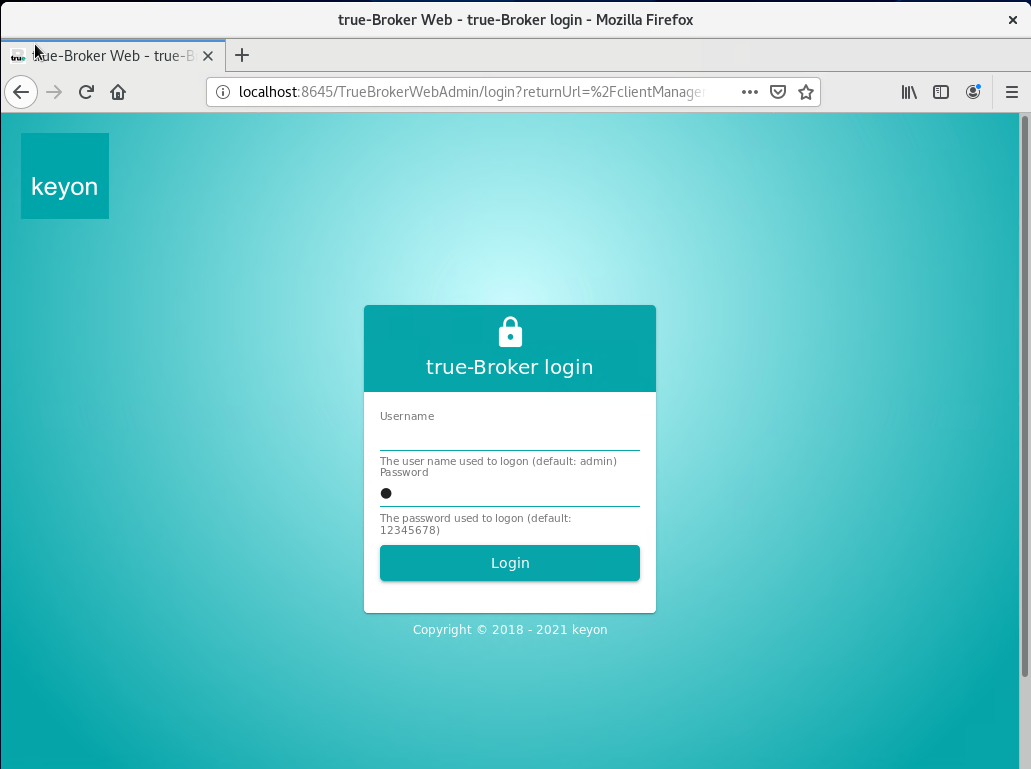
Please consult the true-Broker Web – User Manual to configure true-Broker Web.